


CSS-Powered Animated Cursors
in the year of our Lord 2025
With the help of these three pages, I can safely say that we no longer need to kneel at the throne of modern web browsers and accept our static cursor fate.
The CSS-only workaround devised by JT (second and third links) is one they say only works on Chrome, but it works for me on Firefox, Librefox, and the Tor browser, so hopefully it works on other browsers too. The second link also has a JS version available in case you're able to use it in your neocity.
So, let's say you want to use an animated cursor in your CSS, but you've tried using .ani files and it just hasn't worked.
Here's what you want to do:
- If you already have a custom cursor set up over your whole site as your main cursor, make sure the CSS for it both
- has it designated for the body (or whichever segment it's the main cursor for) and NOT a wildcard "*"
- and does NOT include "!important" inside.
- Decide what .ani file you want to use as your cursor. For the purposes of this tutorial, I'll be using this one!
- Get the frames of your .ani as separate PNGs. JT used this site but I personally cracked open RealWorld Cursor Editor and saved each frame as its own PNG. This worked for the short animation I'm using, but if your .ani has a lot of frames, using a converter website might be more efficient for you.
- For the purposes of this tutorial, here are the frames for the walking Kirby, in case you don't have an .ani on hand but still want to practice.
- So, you have your PNGs ready. Now it's time to get your CSS fingers ready.
- Pick a name for the id or class that'll have the animated cursor. JT named theirs "#playground", but I'll be calling mine ".kirbwalk" instead. Alternately, if you're gonna be using an animated cursor as the default across your website, you can give it a wildcard "*" or use "body" instead of a name. Just be aware that wildcarding it might make it override other custom cursors like I warned you about earlier.
- Additionally, if you have any empty space outside the body (like if your page doesn't have a lot of stuff on it), that empty space will revert to the visitor's default cursor. What I do to avoid this is just make a div that spans 100% of the width and height of a page, give it a z-index of -1, and just include it in any pages that have that empty space. There's probably a better way to do it but I haven't worked it out yet lmao
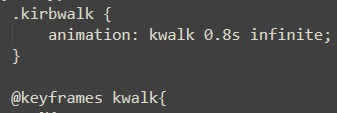
- You can add width, height, and border attributes to the cursor's id/class like JT did if you want to have a specific area devoted specifically to it, but if you're going to be using the cursor across the entire page or in places that you'll designate sizes for some other way, the main thing you want to include is this:
- JT's looked like
animation: animate 0.25s infinite;since their animated cursor's animation lasted a quarter of a second. For Kirby here, I'll be peeking into RWCE to see how long each frame plays for. - Add all those lengths together for 48, divide by 60 fps, and we get 0.8, so I'll be using that. If you're using something that doesn't work on 60fps to check the length, just use that number instead of 60 here.
- Ah, yes, the @keyframes property. We'll be using this to set up the actual animation. Before we touch it, though, we need to figure out how much of our 0.8 seconds of animation to give each frame. You might have noticed that Kirby here has some frames that last longer than others, which complicates things a little bit. If you have a simple animation where each frame lasts as long as any of the others, you can just divide 100 by your number of frames and use what you get in the next bit. If Kirby's frames were all equal, they'd all take up 16.66% repeating of the total animation loop. Since that's not the case, though, we'll need to get a bit more Advanced™ with it.
- and by that i mean "remember how we divided the total number of frames by 60 or whatever number you wound up using? now divide that second number by the number of frames." the number this gives you will be our surprise tool to turn each frame's length in fps into a percentage. mine is 1.25. gotta love reciprocals <3;
- The lengths of Kirby's frames tend to stick to 7 or 10 out of the 60fps he's allotted, so 7/60 gives us 0.11667, and 10/60 gives us 0.16667. Multiply these by your surprise tool, and 7/60 becomes 0.14583, or 14.58%, while 10/60 becomes 0.20833, or 20.83%.
- Now that you have your percentages, just add them up in the order they are in the animation, and make sure your 0% and 100% are the same frame. Here's how mine looks.
- And when you mouse over wherever you place the animated cursor zone...
Don't do this!

Do this instead!



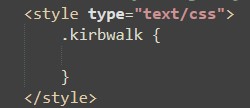
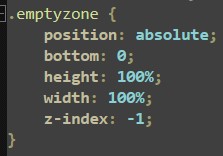
animation: (pick a name) (length of time) infinite;
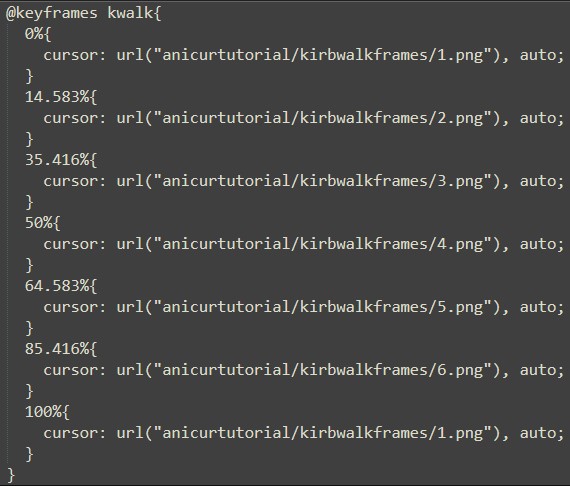
Voila!
You can set up multiple cursors this way if you really want to. Case in point:
However, if there's a way to make this work with an animated cursor that also inverts the colors of whatever it hovers over, I don't know what it is. The space below is set up to display an inverted cursor (that is static, but just bear with me here as I pretend it's not)...
...but as you can see, the insides of the cursor are completely invisible. At least, on Windows in Firefox. And yet, if I try to display the cursor normally- or any static inverted cursor- it simply doesn't display at all.
in conclusion i wish we could just use regular .ani cursors without any of this extra stuff but i'm glad it can still be done. Now, if anybody needs me, I'm gonna go open up my halloween css theme and make the cursor animate properly.


